
 Smoothify
 SnapActions
 Beat Detector
 AnyPaste
 Emoji Picker
 File Organizer
At blinkl.io, we aim to deliver a seamless and reliable experience for every user: whatever your editing workflow or setup.
If you encounter a problem please follow the steps below and share the requested details with our support team. This will help us reproduce and resolve the issue as quickly as possible.
How to contact us
You can reach our support team directly: contact@blinkl.io
Our resolution process
To fix a bug effectively, our team first needs to reproduce it in a real editing environment. We operate a fleet of Windows and macOS machines running different versions of Adobe Premiere Pro to replicate and analyze reported issues accurately.
The more information you can provide, the faster we can help.
Required information
1. A clear description of the issue
Please describe:
- What exactly happens
- When it occurs (launch, during editing, after export, etc.)
- Whether it happens consistently or intermittently
2. blinkl.io log files (crucial for diagnosis)
These files help our technical team understand what’s happening in the background.
To retrieve your blinkl.io logs:
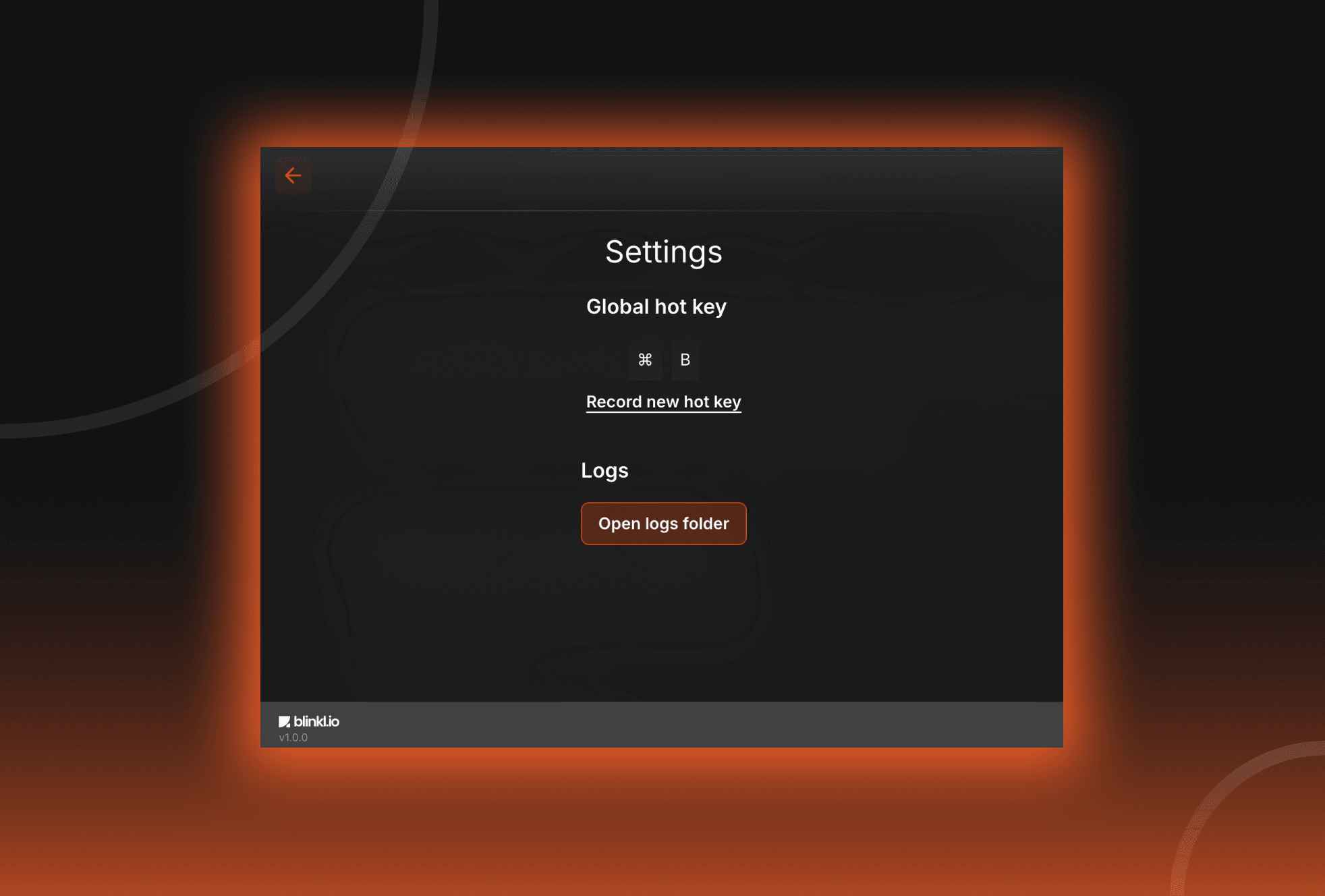
- Open 'Settings' in blinkl.io command bar
- Click 'Open logs folder'
- You should now have access to your logs.
3. Screenshots or a short screen recording
If possible, include:
- A screenshot or short screen recording showing the steps that lead to the issue.
- This visual context helps us identify patterns or reproduce the behavior more quickly.
Fast response guaranteed
Once we receive your message with the above details, our technical team will reproduce and fix the issue as soon as possible. We’ll keep you informed every step of the way.
Thank you for your cooperation, it helps us improve blinkl.io continuously and ensure a smoother experience for everyone.