
 Smoothify
 SnapActions
 Beat Detector
 AnyPaste
 Emoji Picker
 File Organizer
blinkl.io is a command bar for Adobe Premiere Pro that lets you access extensions and shortcuts instantly. Here’s how to install it correctly on Mac or Windows, create your account, and start using it.
Step 1 – Download blinkl.io
Go to the official blinkl.io download page and choose your version:
- macOS installer (.dmg)
- Windows installer (.exe)
Both versions are compatible with Premiere Pro 23, 24, and 25.
💡 Note: If your system displays a “virus detected” or “unverified developer” warning, don’t worry — the file is safe. We are currently working with verification systems to remove these alerts in future updates.
Step 2 – Open the file
Once the installer is downloaded, open the file from your 'Downloads' folder. A window will appear: double-click the blinkl.io logo to launch the setup. blinkl.io will open automatically once the setup is complete.
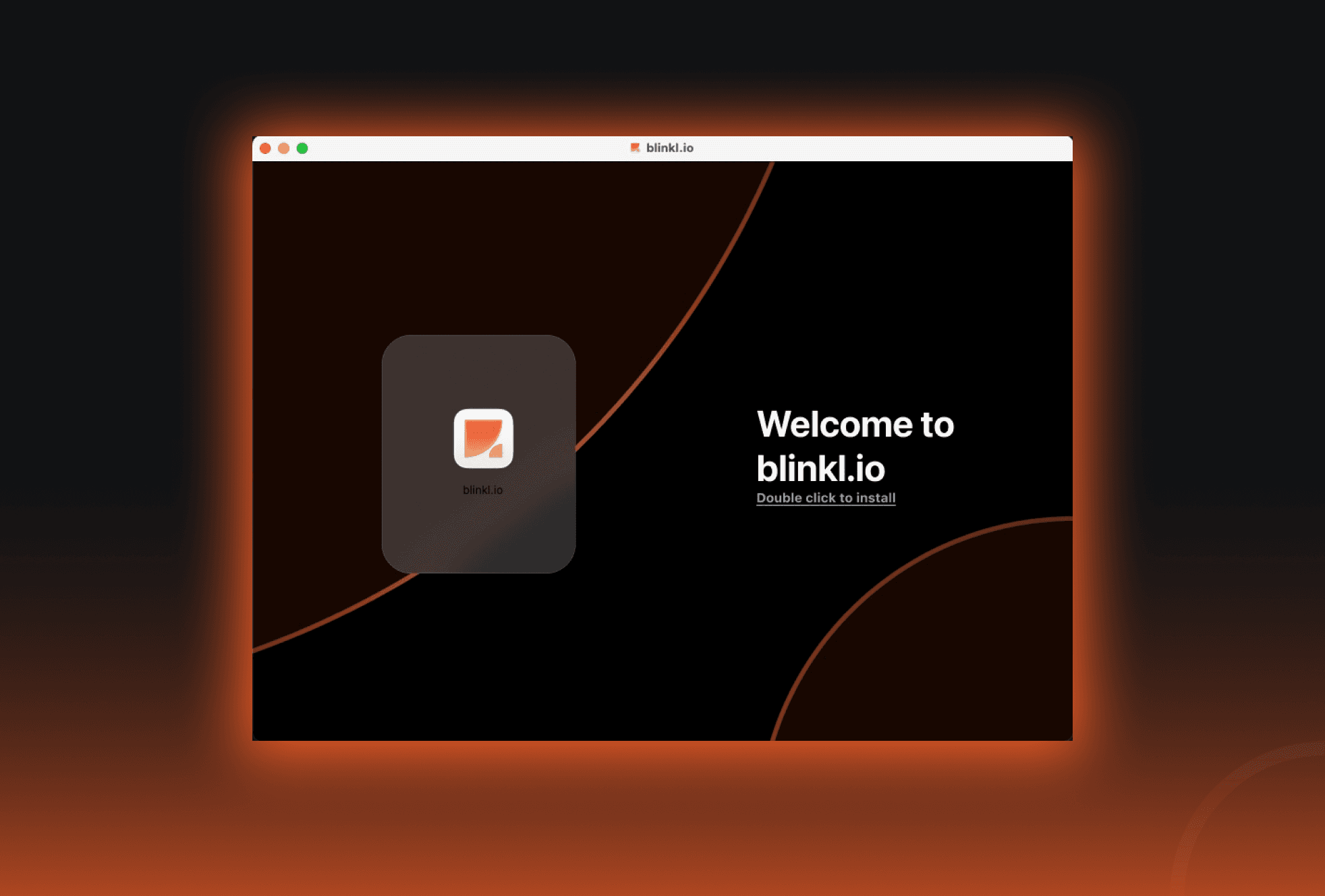
Step 3 – Create your account
If you don’t already have a blinkl.io account:
- Click “I don’t have an account.”
- Enter your email address.
- Check your inbox — you’ll receive an email titled “Connect to blinkl.io”
- Click the “Connect” button to verify.
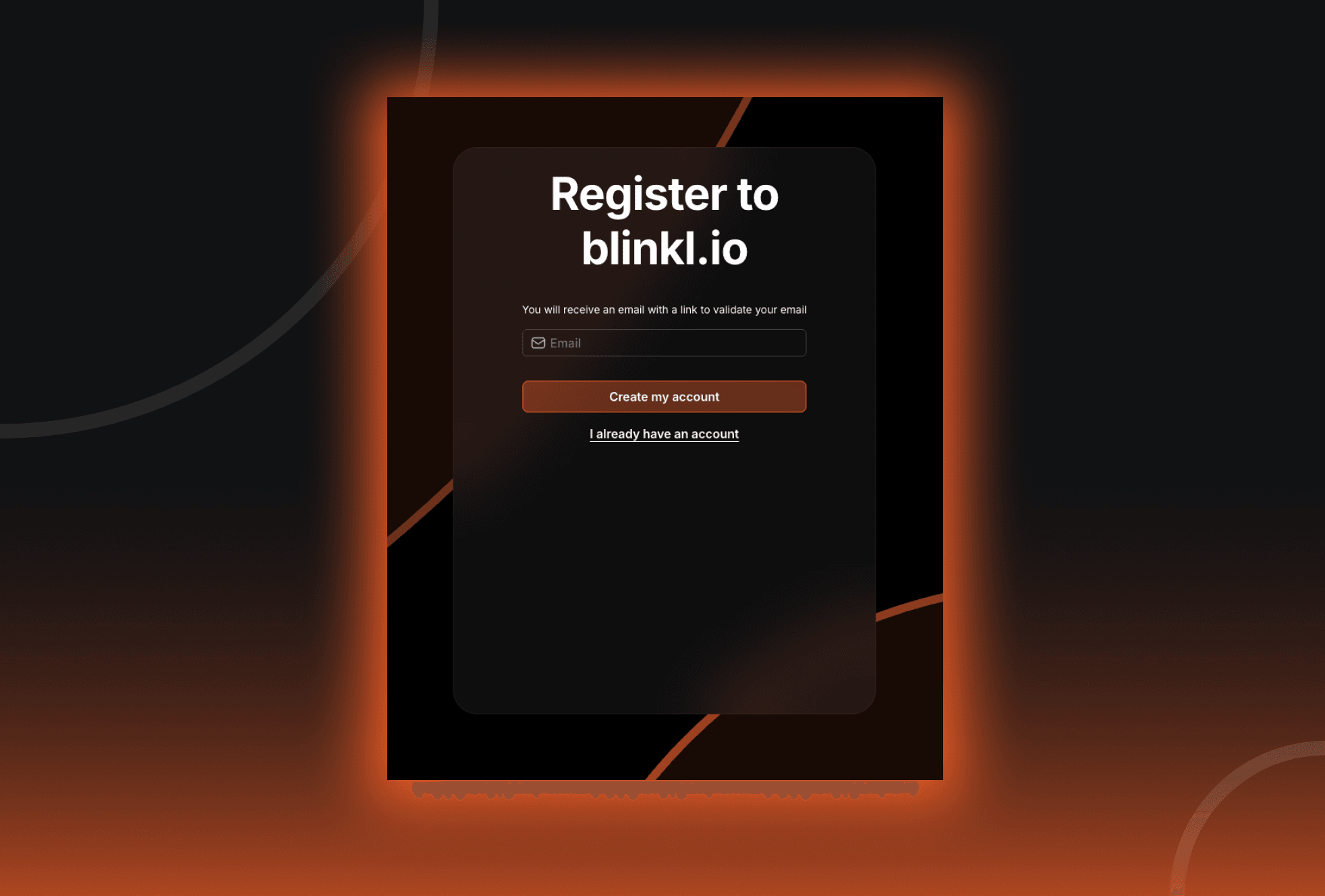
Don’t forget to check your Spam or Promotions folder if the email doesn’t appear. After clicking the link, you’ll land directly on your blinkl.io web Dashboard, and your account is automatically created.
Step 4 – Set your Hotkey
blinkl.io will reopen and ask you to set your Hotkey — this is the shortcut that lets you launch it instantly inside Premiere Pro. You can:
- Keep the default shortcut (recommended for beginners), or
- Choose your own combination.
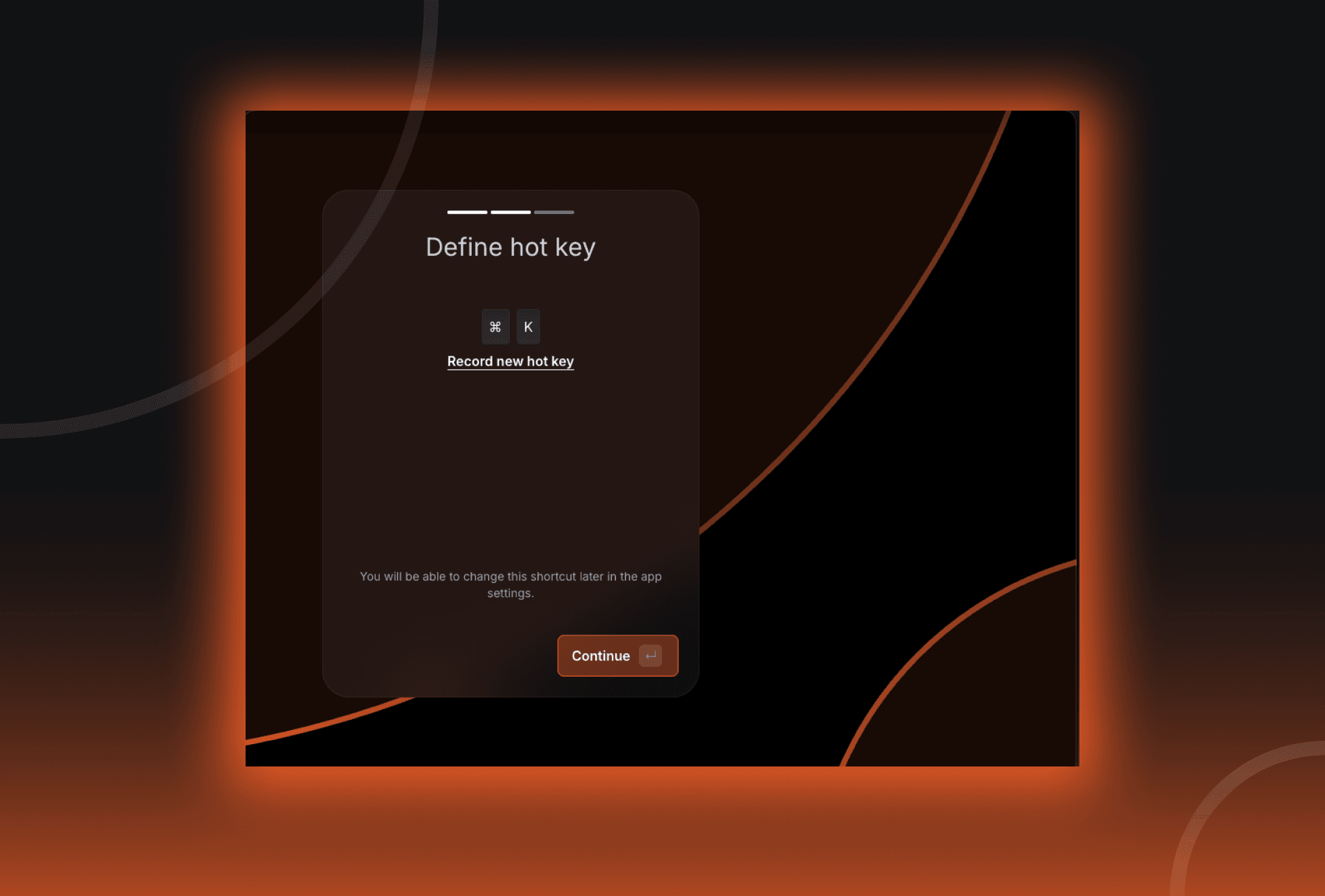
You can change this shortcut anytime in the settings.
Step 5 – Start your journey with us!
You’re all set! Use your Hotkey to open blinkl.io whenever you need it.
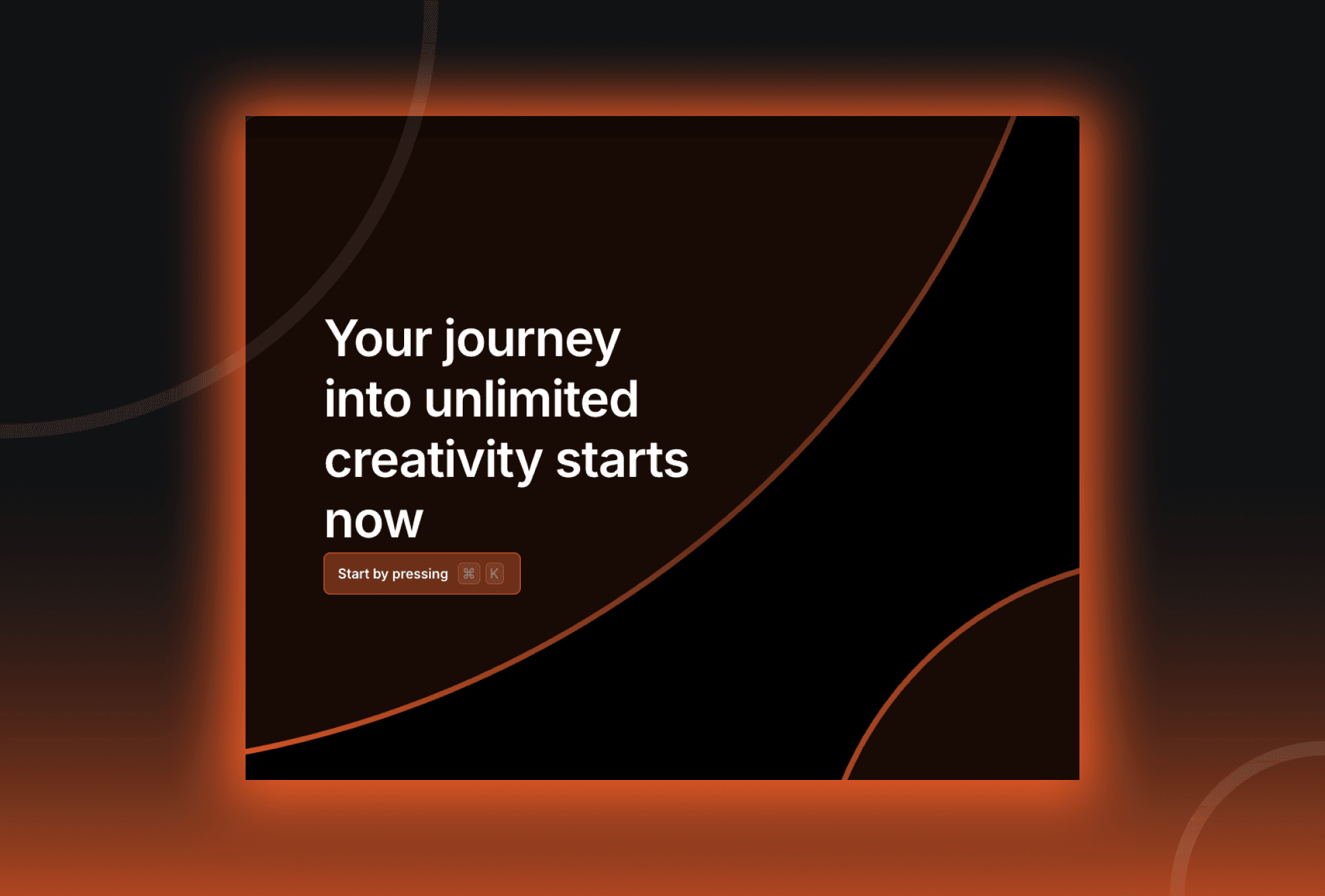
Explore the available extensions — like Smoothify for motion curves or SnapActions for instant video and audio effects — and start speeding up your Premiere Pro workflow.