
 Smoothify
 SnapActions
 Beat Detector
 AnyPaste
 Emoji Picker
 File Organizer
If you’re on macOS and need to remove blinkl.io from your system, follow the steps below. This guide ensures that all files, caches, and temporary data are properly deleted.
👉 If you're on Windows, follow this tutorial
Step 1: Uninstall the application
Open your 'Applications' folder and drag blinkl.io into the Trash.
Step 2: Delete temporary files
blinkl.io stores temporary data in the macOS system cache. To remove it:
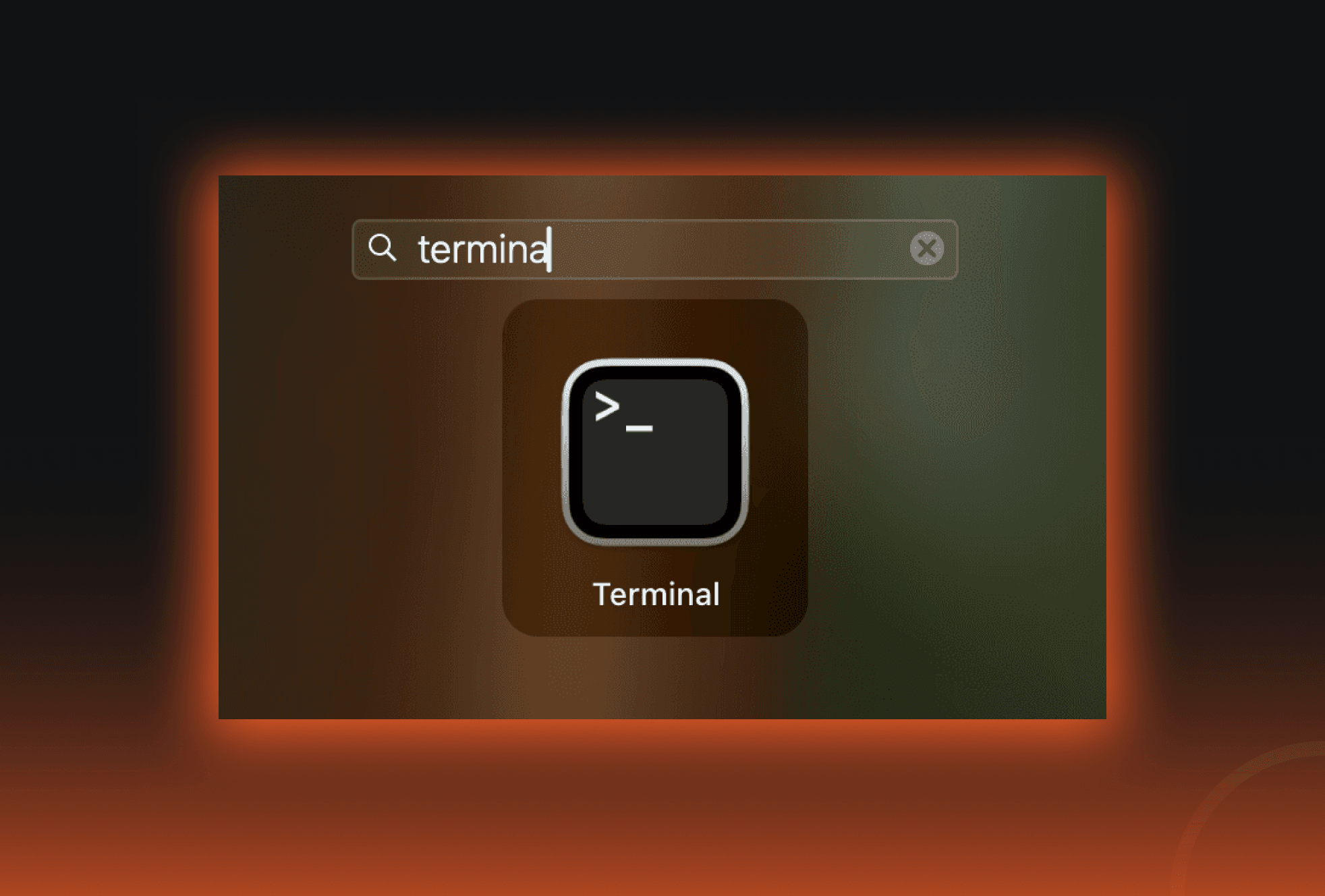
- Open Terminal
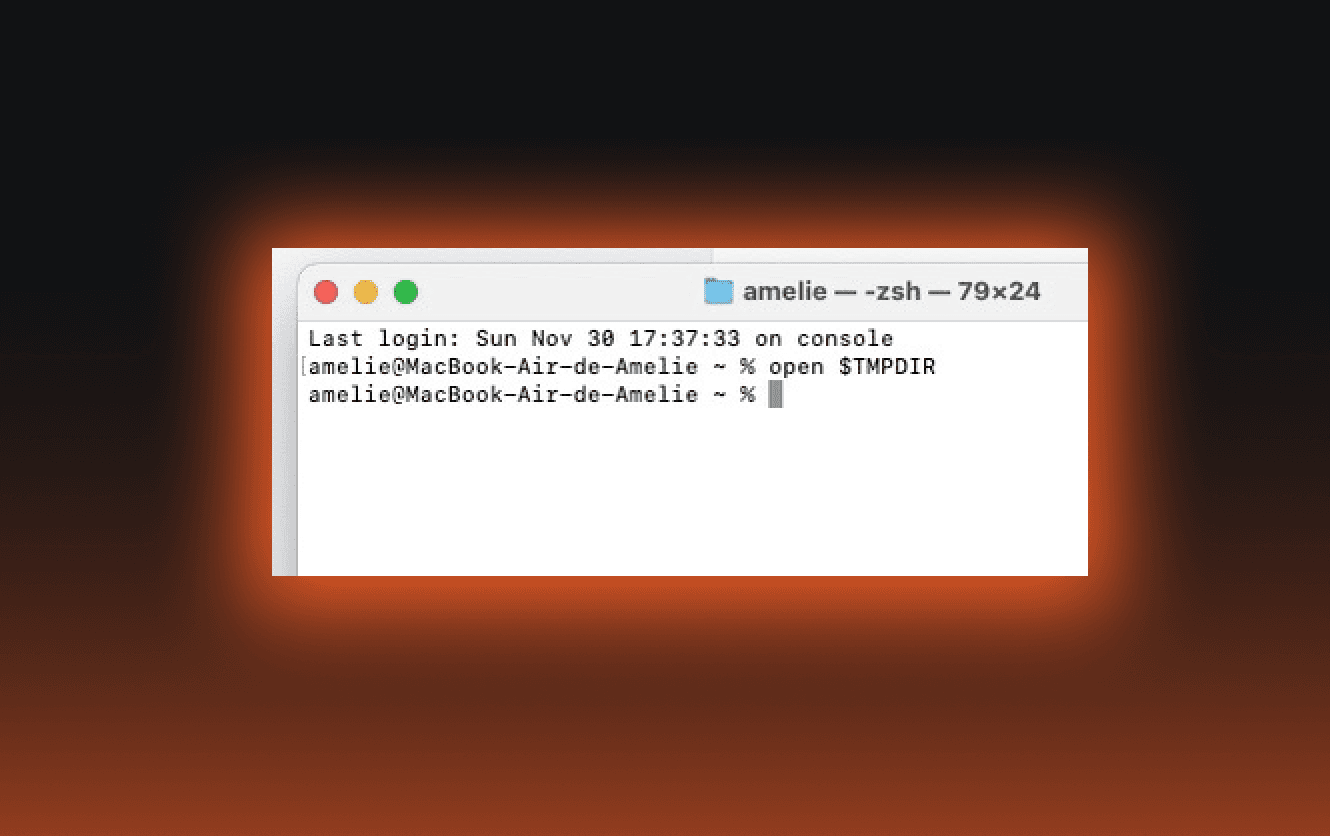
- Type the following command and press Enter: open $TMPDIR
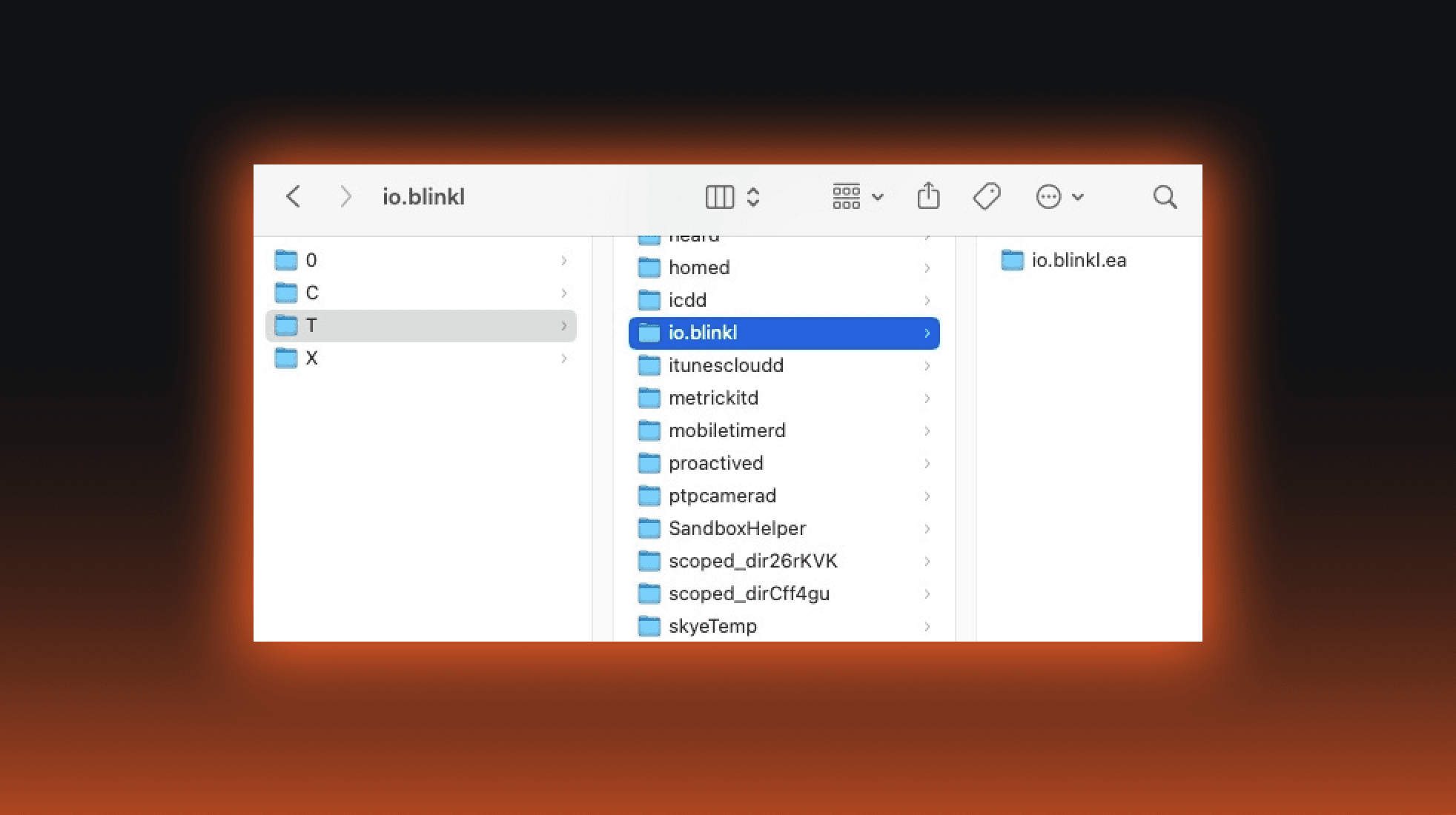
- In the folder that appears, locate io.blinkl
- Delete the entire io.blinkl folder
Step 3: Delete application support files
Next, delete blinkl’s support directory:
- Open Finder and click on 'Go' > 'Go to' in the top bar
- Paste the following path: ** ~/Library/Application Support/**
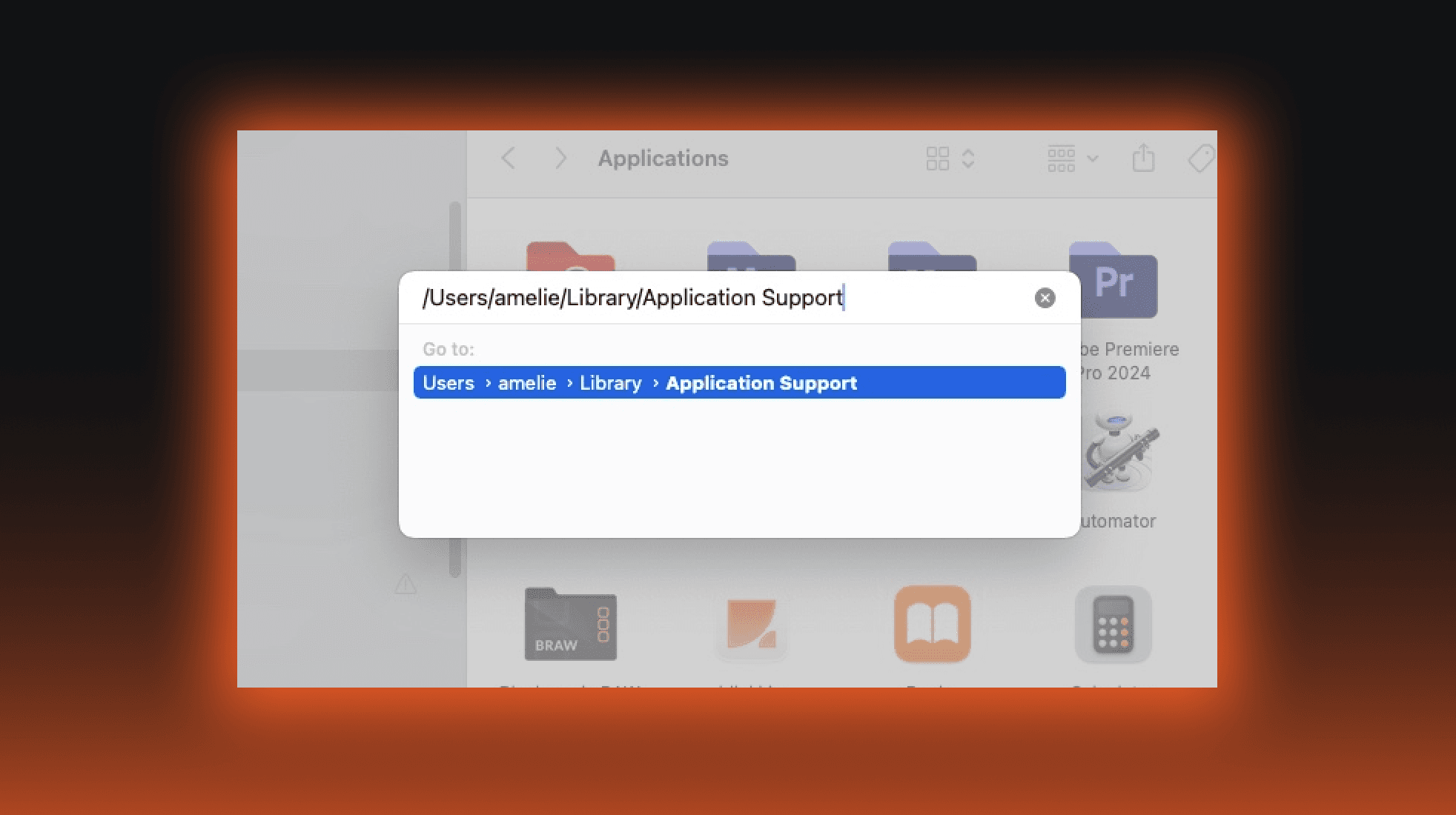
- Find and delete the io.blinkl folder
blinkl.io is now completely uninstalled!
You can reinstall it anytime by following our installation guide. We hope to see you again soon!