
 Download
Myriam HINDERER
2026-07-07
How to Auto-Edit a Music Video to the Beat in Premiere Pro (New Auto Edit Clip Mode)
Cutting a music video to the beat by hand takes hours. See how the new Auto Edit Clip mode reads your track and cuts your clip to the beat inside Premiere Pro.
The quick answer
To sync a music video to the beat in Premiere Pro, you either mark the beats and cut by hand, or you let an extension read the track and cut for you. Your main options are:
- Cut manually by tapping a marker on each beat, then slicing every clip to match.
- Use a beat-detection tool to place the markers, then still make every cut yourself.
- Or, with Auto Edit Clip, pick your track, choose where the cuts land, and let it generate the whole beat-synced edit in one pass.
The first two work. They also turn a three-minute clip into hours of scrubbing. The new music video mode in Auto Edit Clip does that rough cut for you.
Why cutting a music video to the beat takes hours by hand
Beat-matching is repetitive work. You listen for the kick, drop a marker, cut the clip, trim the handles, then move to the next bar and do it all again. For a full track that is hundreds of near-identical decisions, and a single missed frame is enough to make the whole sequence feel slightly off.
Layering flashes, speed ramps, and transitions on top is another full pass through the timeline. It works, but it is the kind of work that eats an afternoon and leaves you too tired to judge the creative choices that actually matter.
What the new music video mode does
Auto Edit Clip already assembles multi-cam rushes into a rough cut. This mode brings the same one-command speed to music videos: it reads your audio track, finds the beats, and cuts your stacked shots to the music for you.
You still make every creative call: which beats to cut on, how often to cut, how heavy the effects are. Auto Edit Clip just handles the tedious first pass and hands you a finished sequence you can refine.
How to auto-edit your music video, step by step
Set up your project first, then let Auto Edit Clip do the beat work.
- Import your clips into the timeline and stack them, one shot per video track. Delete the audio tracks if you want a cleaner view.
- Import your music and drop it onto an audio track.
- Open the Blinkl Ring with Ctrl+Right-click, click the Blinkl icon in the middle to open the catalog, and select Auto Edit Clip.
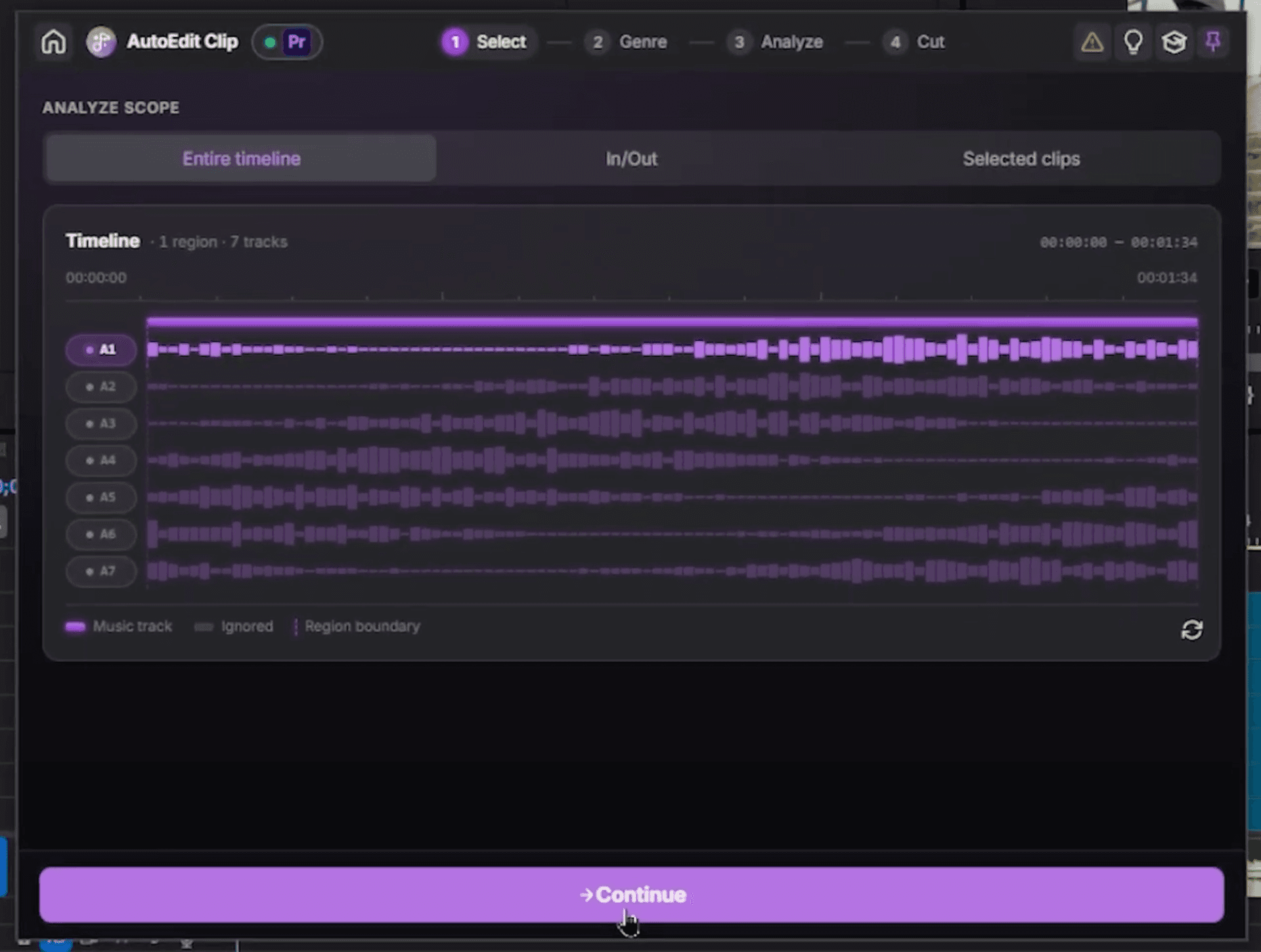
- Select the audio track that holds your music (A1 in the demo), choose Entire timeline or In/Out for just a section, and click Continue.
- Pick your music genre, hip hop, electronic, or one of the other modes, or leave it on Auto, then click Analyze music and wait a few seconds.
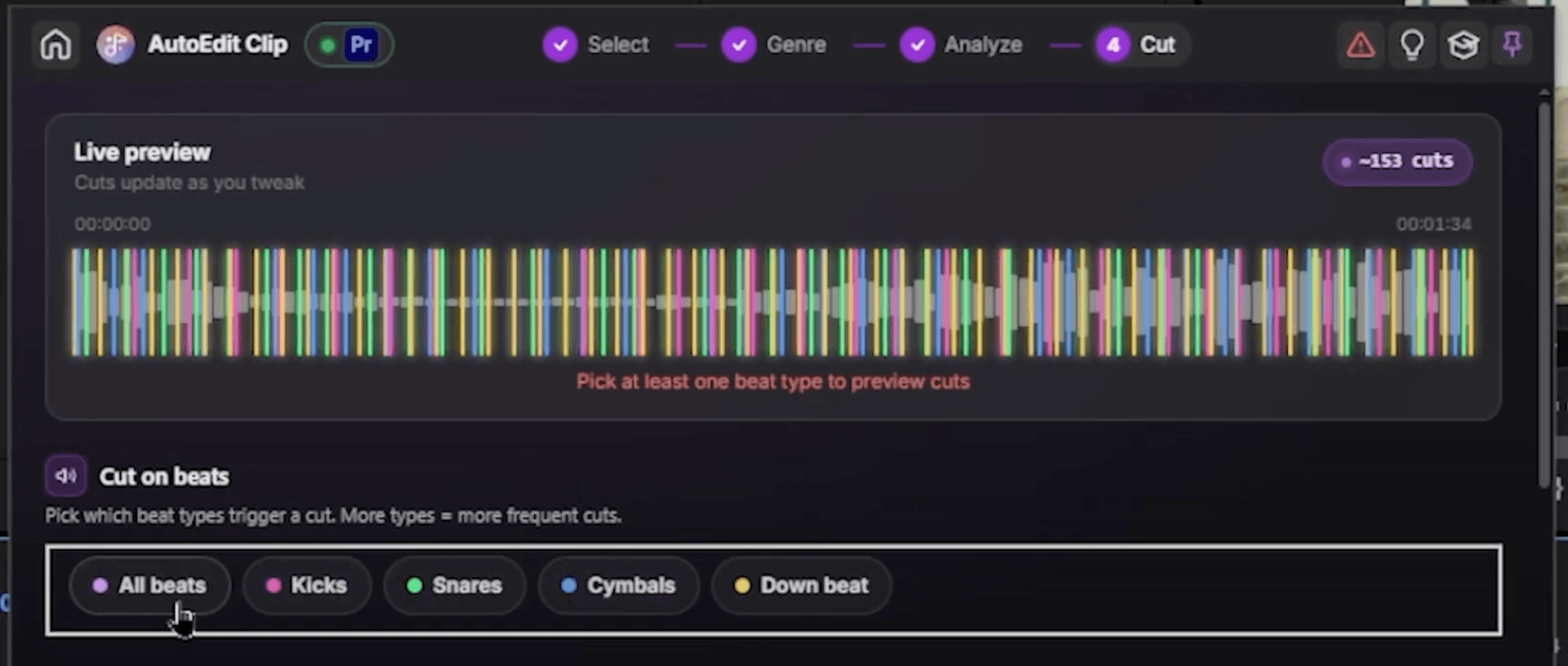
- In the configuration step, use the live preview to choose where the cuts land. Selecting kicks and downbeats updates the preview in real time.
- Set the cut frequency, the minimum interval between cuts. 1/2 gives a dynamic feel, or go custom for your own intervals.
- Add effects, flashes, kick effects, and auto transitions, then set the density (60% in the demo) for how heavy they feel.
- Adjust the priority of your video tracks if you want a specific shot on screen more, then click Generate edit.
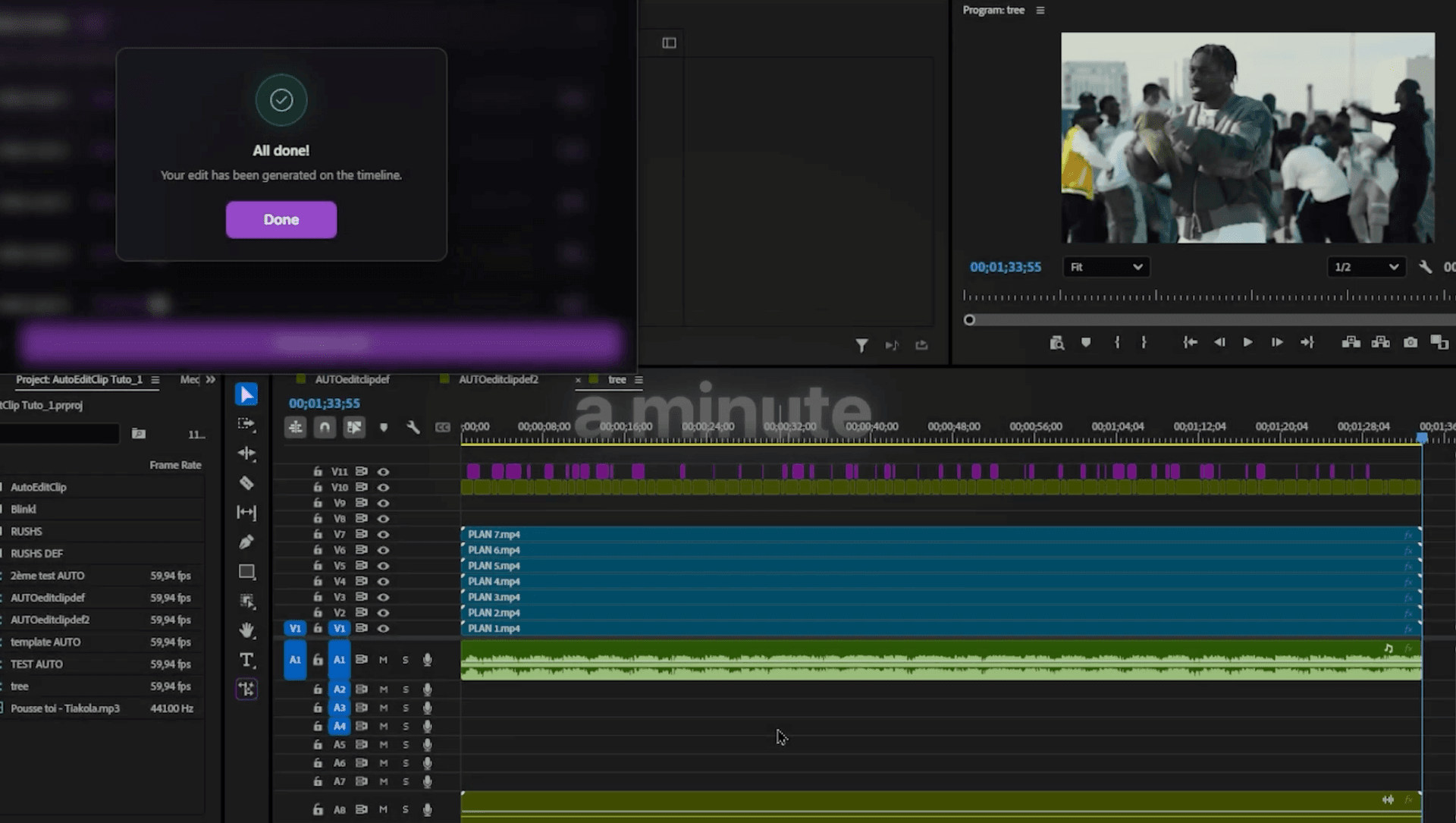
A few seconds later you have a beat-synced clip, cut and effected, ready to refine.
Swap a shot in one click
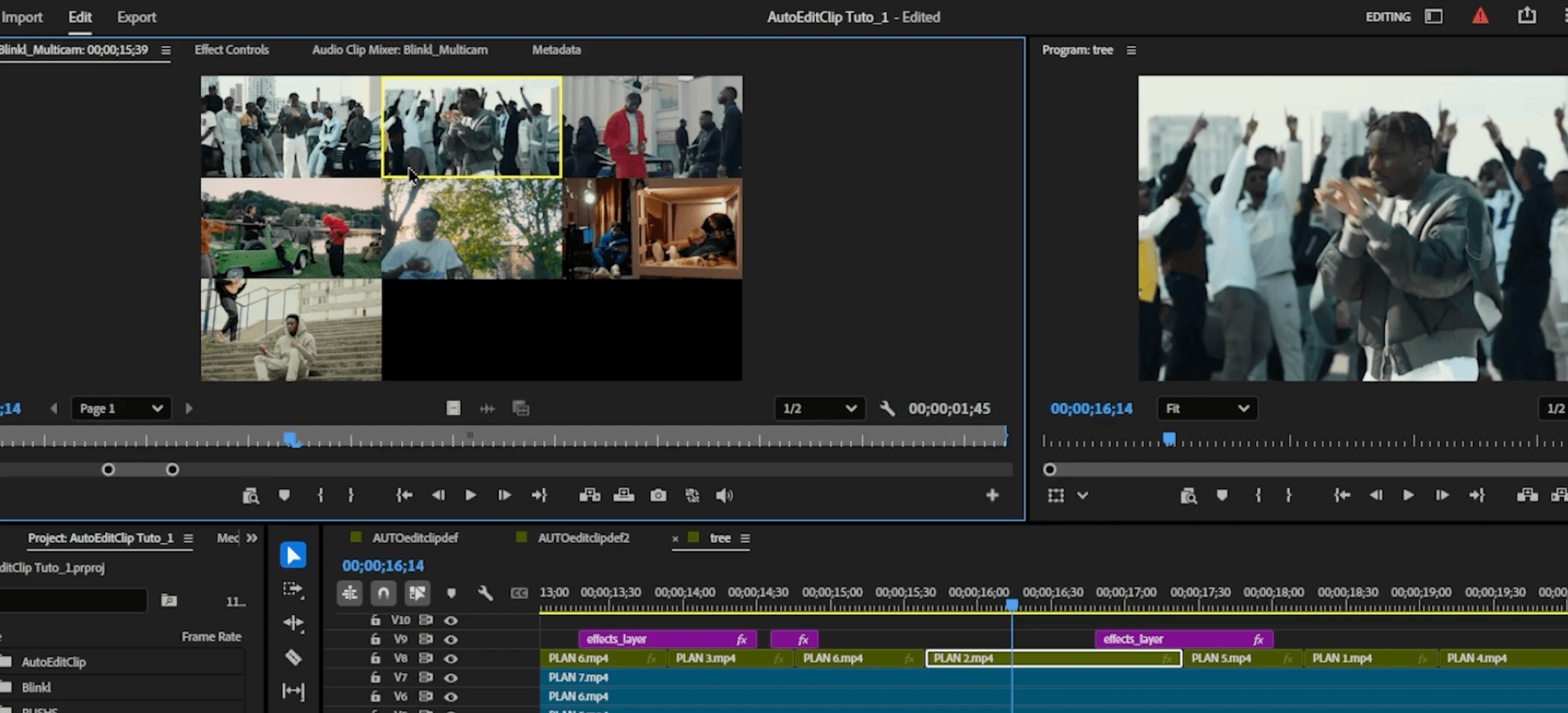
Want a different shot at a specific moment? Double-click the clip, a window pops up, pick the clip you want, and it swaps in place. No re-cut, no re-sync, just the shot you actually wanted.
Which cut settings should you choose?
- Choose kicks and downbeats when you want cuts on the punchy, obvious moments of the track. It is the safest starting point for most music videos.
- Choose a shorter cut frequency when the song is fast or you want a high-energy, rapid-fire feel. Lengthen it for slower, more cinematic sections.
- Turn effect density up when the track calls for flashes and hits, and down when the footage should carry the edit on its own.
- Raise a track's priority when one shot is your hero angle and you want it on screen more often than the rest.
Spend your time on the vibe, not the cuts
Beat-matching a music video by hand is reliable and slow. Auto Edit Clip turns it into one action: stack your shots, drop your track, generate the edit. Premiere gives you a cut sequence synced to the music, and you keep your energy for the creative decisions, the ones a computer should not be making for you.
· Free 14-day trial, no credit card
Frequently asked questions
The short answers to the questions the timeline usually makes long.
Can Premiere Pro auto-edit a music video to the beat?
How does Auto Edit Clip sync cuts to the music, and can I control how often it cuts?
Can it add effects automatically?
Can I change a shot after it generates?
Is Auto Edit Clip free?
Which Premiere Pro versions are supported, and does it need internet?
Myriam HINDERER
Chief Marketing Officer