
 Download
Myriam HINDERER
2026-08-10
How to Translate Every Text in Your Premiere Pro Project in One Click (New Project Translator)
Posting your video in multiple countries? Project Translator detects every text in your Premiere Pro project, translates it with AI, and builds one timeline per language in a click.
The quick answer
To turn one video into several language versions in Premiere Pro, you either rebuild each version by hand or let an extension detect and translate the text for you. Your options are:
- Duplicate the sequence per language and retype every title, MOGRT, and subtitle yourself.
- Export the text, translate it in another tool, and paste it all back in by hand.
- Or, with Project Translator, detect every text on your timeline, translate it into the languages you want, and generate one sequence per language in a click.
The first two are accurate and slow. Project Translator does the detection, translation, and rebuild in one pass, without leaving Premiere Pro.
What Project Translator does
Project Translator is a localization hub built into your timeline. It finds every piece of text in your project, native Premiere titles, Motion Graphics templates, and SRT subtitle tracks, translates them with the latest AI models, and builds a separate, export-ready sequence for each language you pick.
You stay in control the whole way: review every line, tweak any wording, and lock a language so it does not get overwritten later. One edit turns into as many videos as you want.
How to translate your project, step by step
Set your source, pick your languages, and let it build.
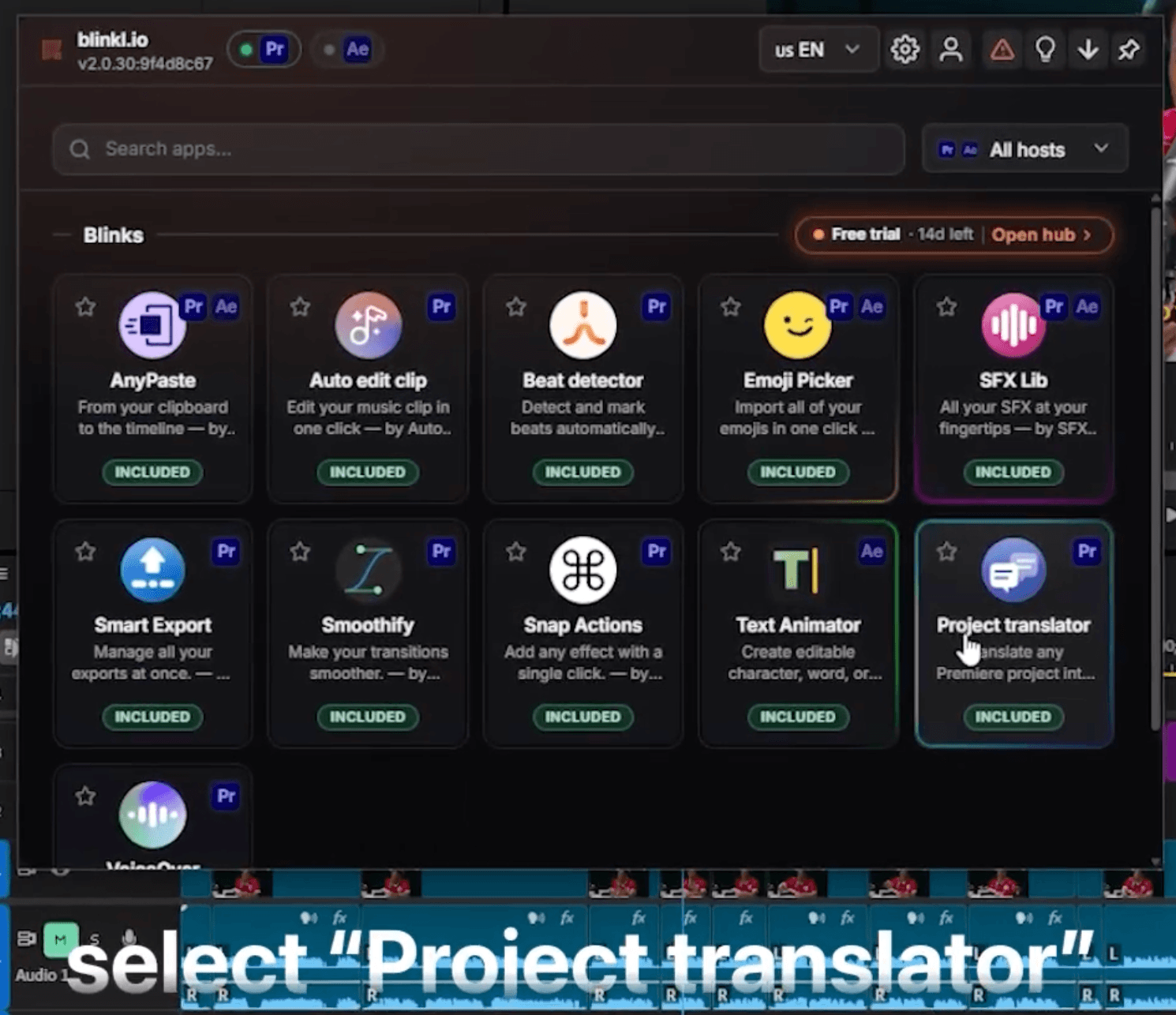
- Open the Ring with Ctrl+Right-click or your custom hotkey, click the Blinkl icon in the middle, and select Project Translator.
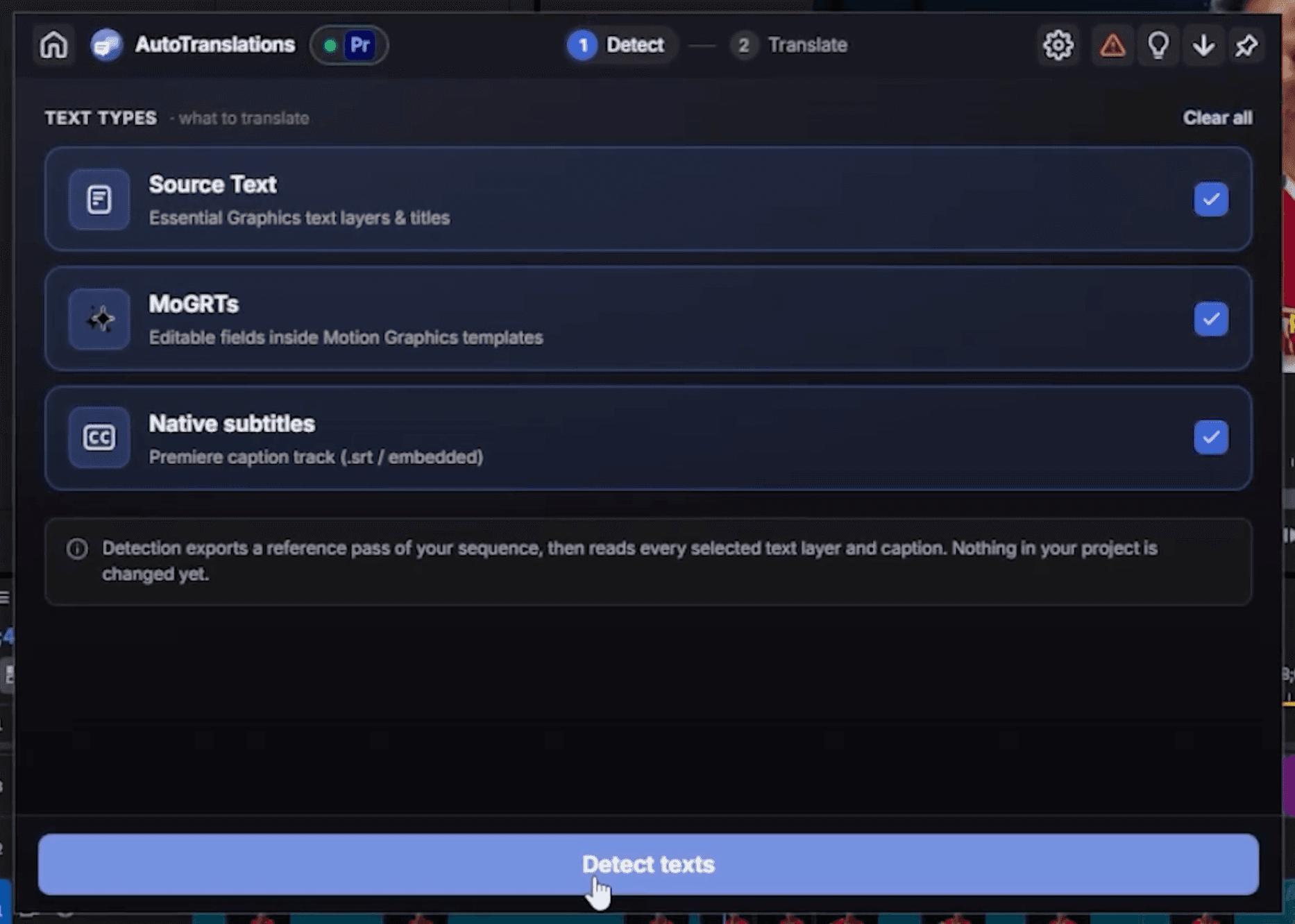
- Choose what to translate: text from your Essential Graphics and text layers, your MOGRTs, and your native Premiere subtitles. All three are on by default, so uncheck anything you want to leave alone.
- Click Detect texts. Blinkl scans your whole sequence in about two seconds and lists every string in a table (82 strings in the demo).
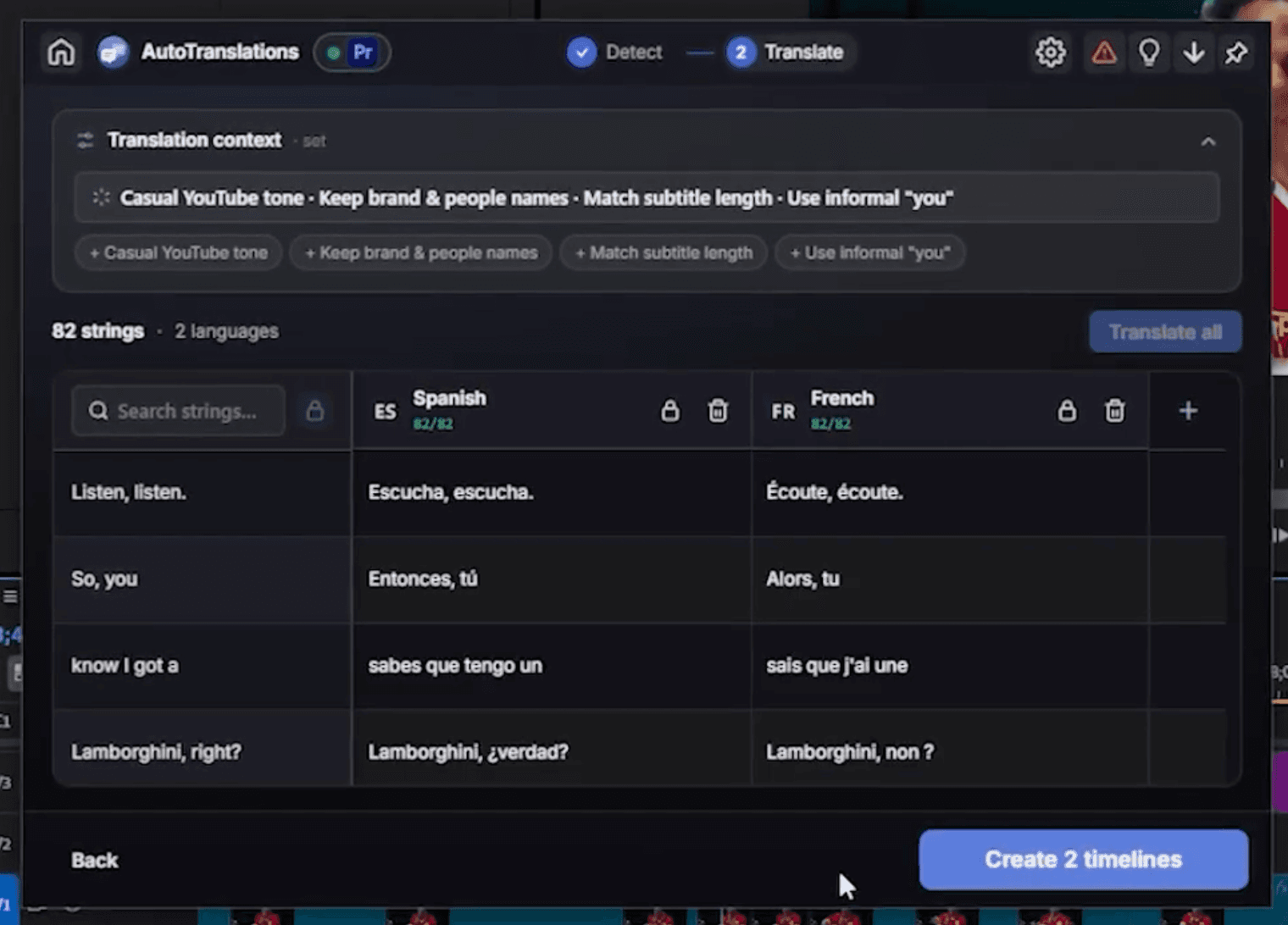
- Pick your target languages. Click the plus, search the 150+ available languages, and add as many as you want at once (Spanish and French in the demo).
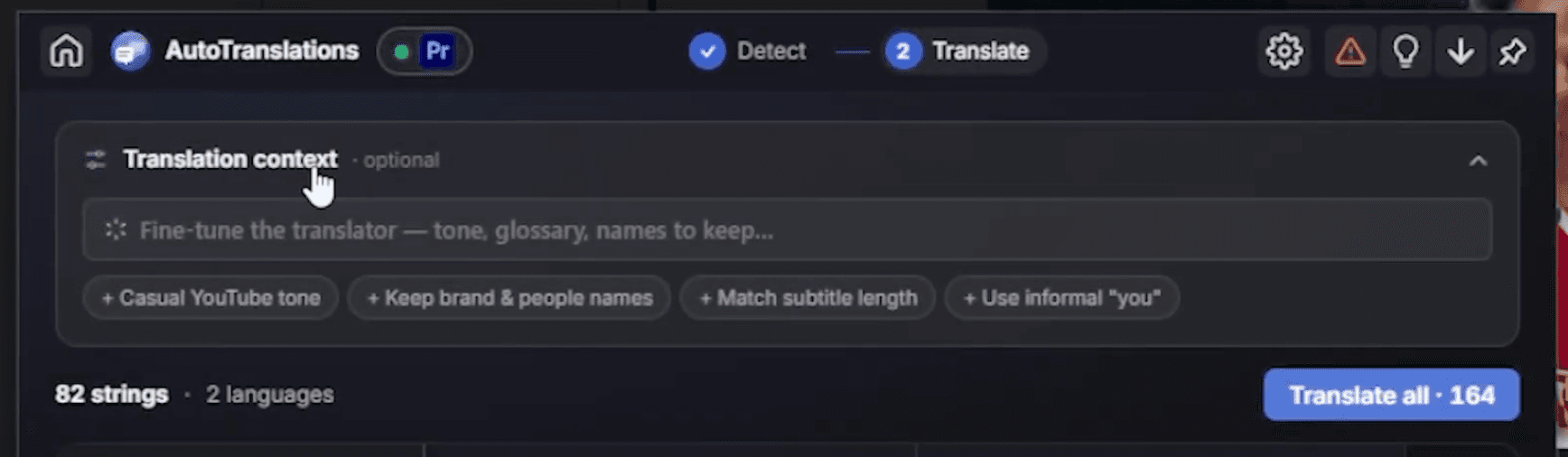
- Set the translation context to fine-tune the result: choose a tone, keep your brand names untouched, or match your subtitle length. This is what makes the translation actually sound like you.
- Click Translate all. In a few seconds every language is translated, string by string.
- Review each line, tweak any translation, and lock a language so it will not be overwritten later.
- Click Create timelines, and Project Translator generates a full timeline per language in your project, ready to export.
One edit in, a stack of export-ready language versions out.
Why the translation context matters
A raw machine translation is fast but generic. The translation context field is where you tell the AI how you actually speak: set a casual or formal tone, protect brand and product names so they stay untouched, and keep subtitle lines short enough to fit on screen. It is the difference between a translation that is merely correct and one that sounds like your channel.
Which texts should you translate?
- Translate native text and titles for on-screen callouts, lower thirds, and anything typed directly in Premiere Pro.
- Translate MOGRTs when your intros, outros, or graphic templates carry words that change per market.
- Translate subtitles when you caption your videos and need an SRT per language for reach and accessibility.
One video, every audience
Posting the same video across countries used to mean rebuilding it from scratch for each one. Project Translator turns that into one pass: detect the text, translate it, generate a timeline per language. You keep the edit you already made, and walk away with a version for every audience, hours of manual work gone.
· Free 14-day trial, no credit card
Frequently asked questions
The short answers to the questions localization usually drags out.
Can I translate a whole Premiere Pro project at once?
What text can Project Translator detect?
How many languages are supported?
Can I edit the AI translations?
What does it create at the end?
Is Project Translator free?
Myriam HINDERER
Chief Marketing Officer