
 Download
Myriam HINDERER
2026-08-30
How to Export Multiple Shorts at Once in Premiere Pro (Blinkl Smart Exports)
Exporting three shorts stacked on the same timeline used to mean setting in and out points, one at a time. Smart Exports detects every block and renders them all in a single click.
The quick answer
To export several shorts stacked on the same Premiere Pro timeline, your main options are:
- Set an in point and an out point by hand, export, then repeat for every short.
- Use markers to note where each short starts and ends, still exporting one at a time.
- Or, with Smart Exports, let it scan your timeline, detect every block from the gaps, and export them all in one pass.
The first two work. They are also the export equivalent of retyping the same three steps ten times. Smart Exports skips straight to the result.
Why exporting several shorts by hand is slow
Every short on a multi-clip timeline needs its own export pass: set the in point, set the out point, hit export, wait for the render, then scrub to the next gap and do it again. For three shorts that is three full round trips through the export dialog, and the wait between renders is dead time you cannot use for anything else.
How Smart Exports detects your shorts
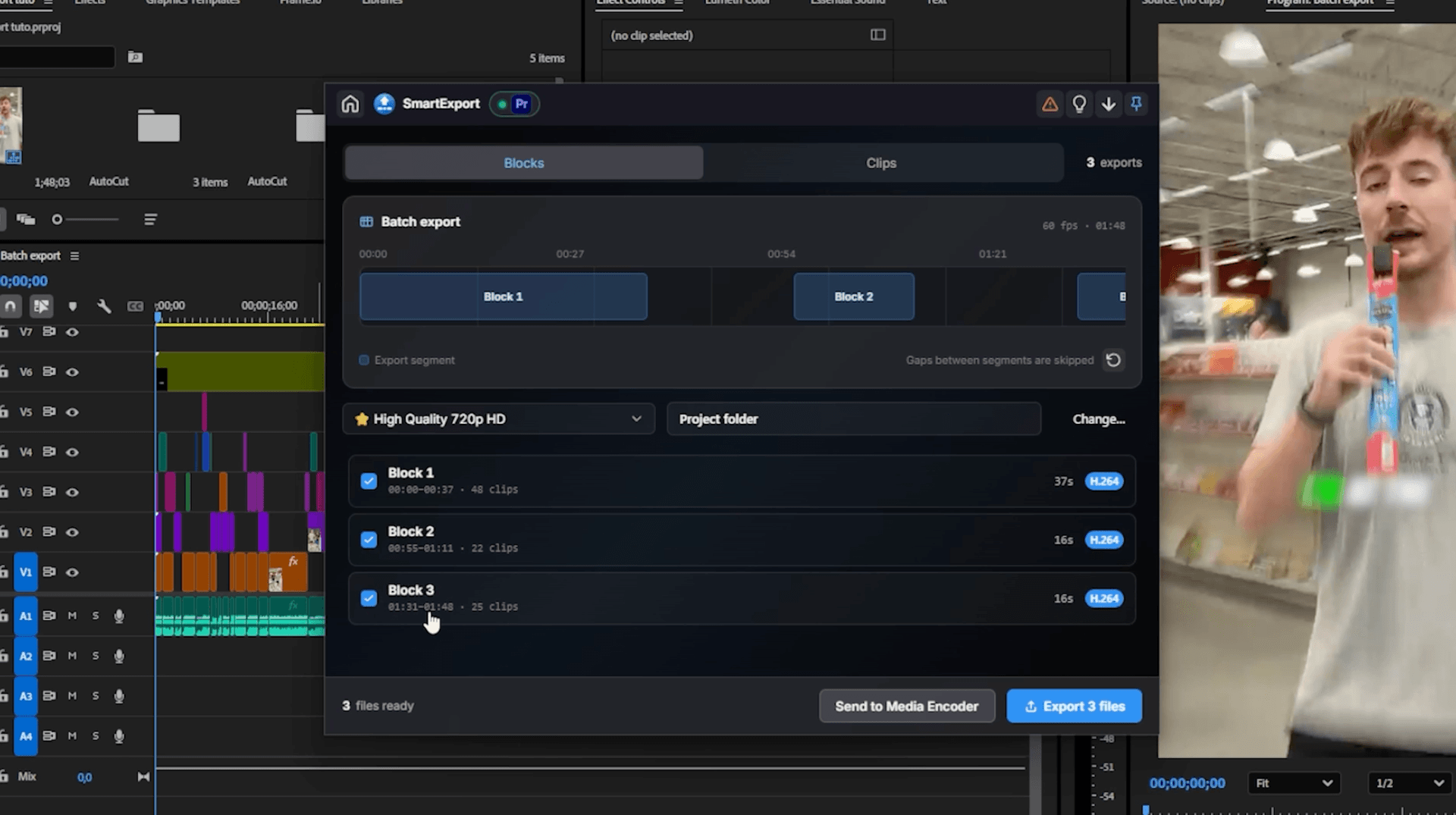
Open the Blocks tab and Smart Exports scans your entire timeline instantly, detecting every block based on the gaps between your sequences, block one, block two, block three. A timeline preview at the top shows each block, and you select which ones to export by clicking on the preview or on the list underneath, where you also see each block's duration and format.
Clips mode: export every clip separately
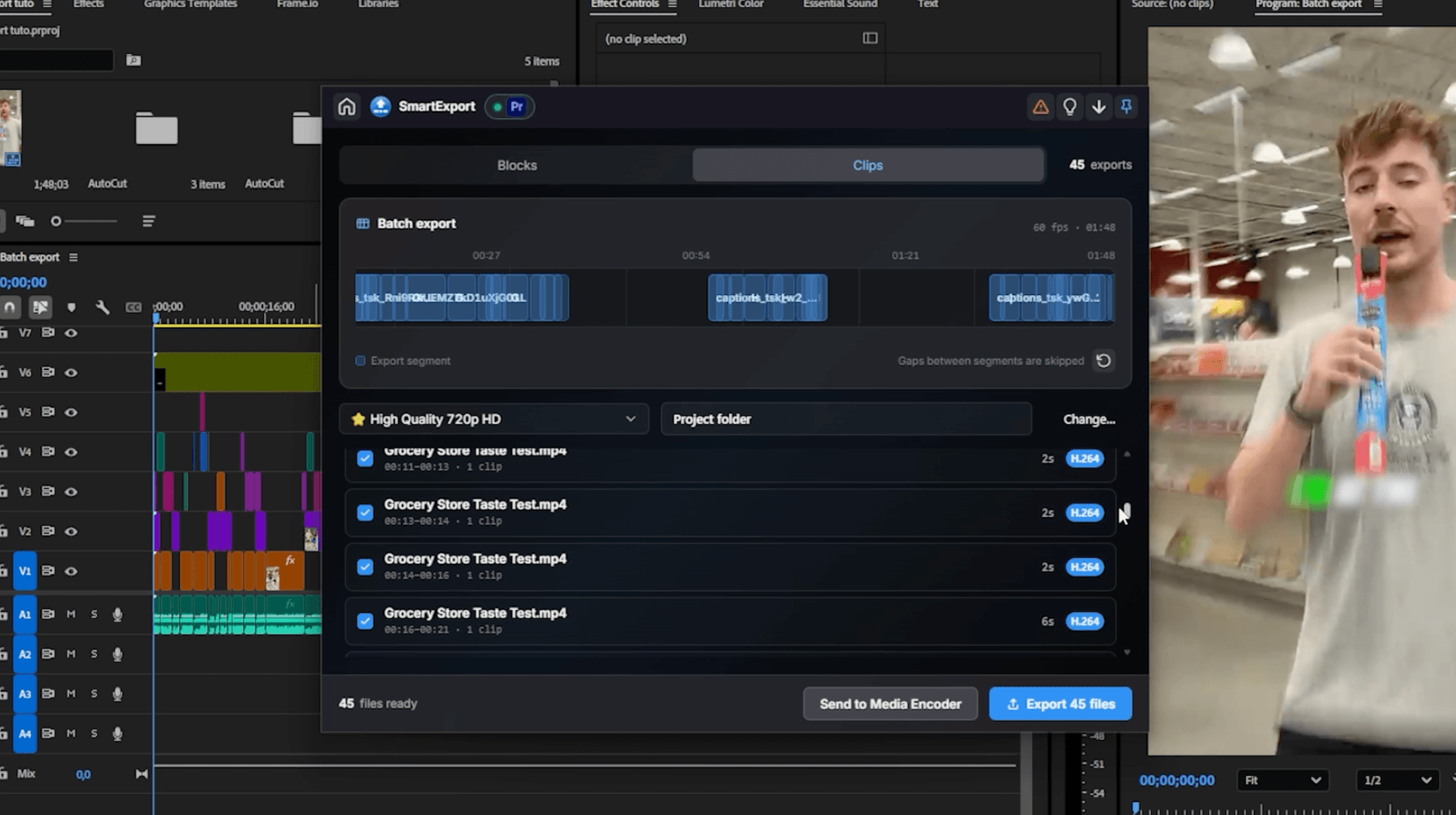
Need every clip on your timeline exported on its own instead, for dailies or client rushes, for example? Switch to Clips mode, and Smart Exports stops grouping by block, it lists your timeline clip by clip instead.
How to export multiple shorts at once, step by step
- Open the Ring with Ctrl+Right-click or your custom hotkey, click the Blinkl icon in the middle, and select Smart Exports.
- Click the Blocks tab. Smart Exports scans your timeline instantly and detects every block from the gaps between your sequences.
- In the timeline preview, click to select which blocks to export, or select them from the list, where each block shows its duration and format.
- Switch to Clips mode instead if you need every clip on the timeline exported separately, for rushes for example.
- Pick your export preset from your Premiere Pro presets synced in the list, shorts, ProRes, or whatever your final format is.
- Pick your destination folder.
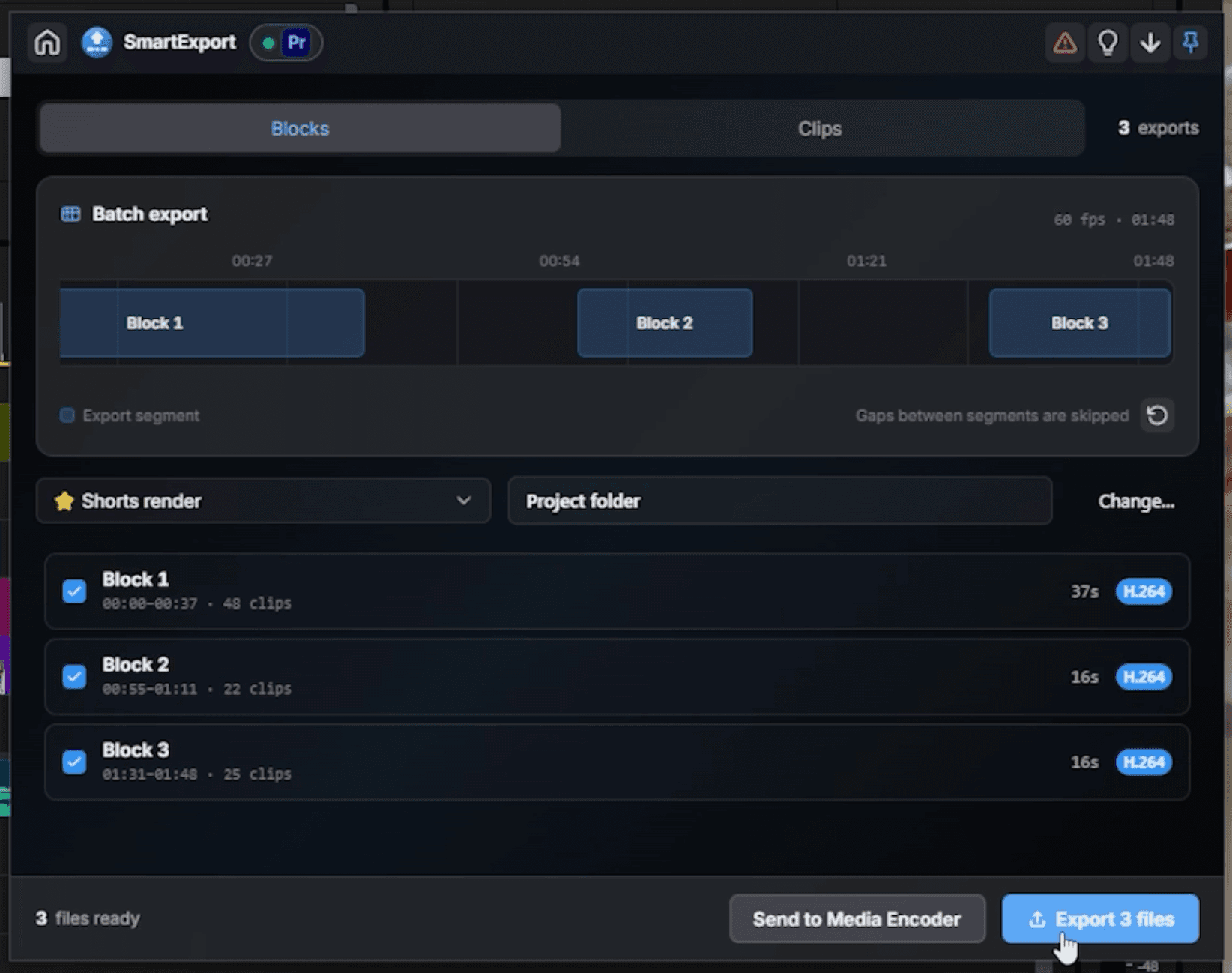
- Click Export files to render directly in Premiere Pro, or Send to Media Encoder to keep editing while it renders in the background.
Which export path should you choose?
- Choose Export files when you are done editing and just want the files now.
- Choose Send to Media Encoder when you have a big render queue and want to keep working in Premiere Pro.
- Choose Clips mode when you need every clip separately, for dailies or client review.
Fewer renders, more editing
Exporting three shorts should not take three trips through the export dialog. Smart Exports reads your timeline, groups your shorts into blocks, and renders every one you pick in a single pass, so you spend that time cutting the next edit instead of babysitting a render queue.
· One click, every short exported
Frequently asked questions
The short answers to exporting several shorts from one timeline.
Can Premiere Pro export multiple sequences on the same timeline automatically?
How does Smart Exports detect each short?
What is Clips mode in Smart Exports?
Can I keep editing while my shorts export?
Is Smart Exports free?
Myriam HINDERER
Chief Marketing Officer