
 Download
Myriam HINDERER
2026-08-20
How to Create a Smooth Zoom Transition for TikTok Edits in Premiere Pro
A buttery smooth zoom in and out transition is a TikTok edit staple. See how to build the curve by hand, or apply it in one click with Smoothify.
The quick answer
To get a smooth zoom in and zoom out transition in Premiere Pro, your main options are:
- Set Scale keyframes by hand and drag the Bezier handles in the graph editor until the easing feels smooth.
- Reuse a curve you already saved as a preset.
- Or, with Smoothify, reproduce the curve once in the graph editor and apply it in one click, then save it as a preset for every future edit.
The native method works. It also means fighting the same handles every single time. Smoothify lets you shape the curve once and reuse it forever.
Why the native method works, but is slow
The native way is real and it works: you create an adjustment layer, add the Transform effect, set your keyframes, then fight with Bezier curves in the graph editor to make the motion smooth instead of mechanical. It gets the job done, it just eats a few minutes per zoom, every time you need one.
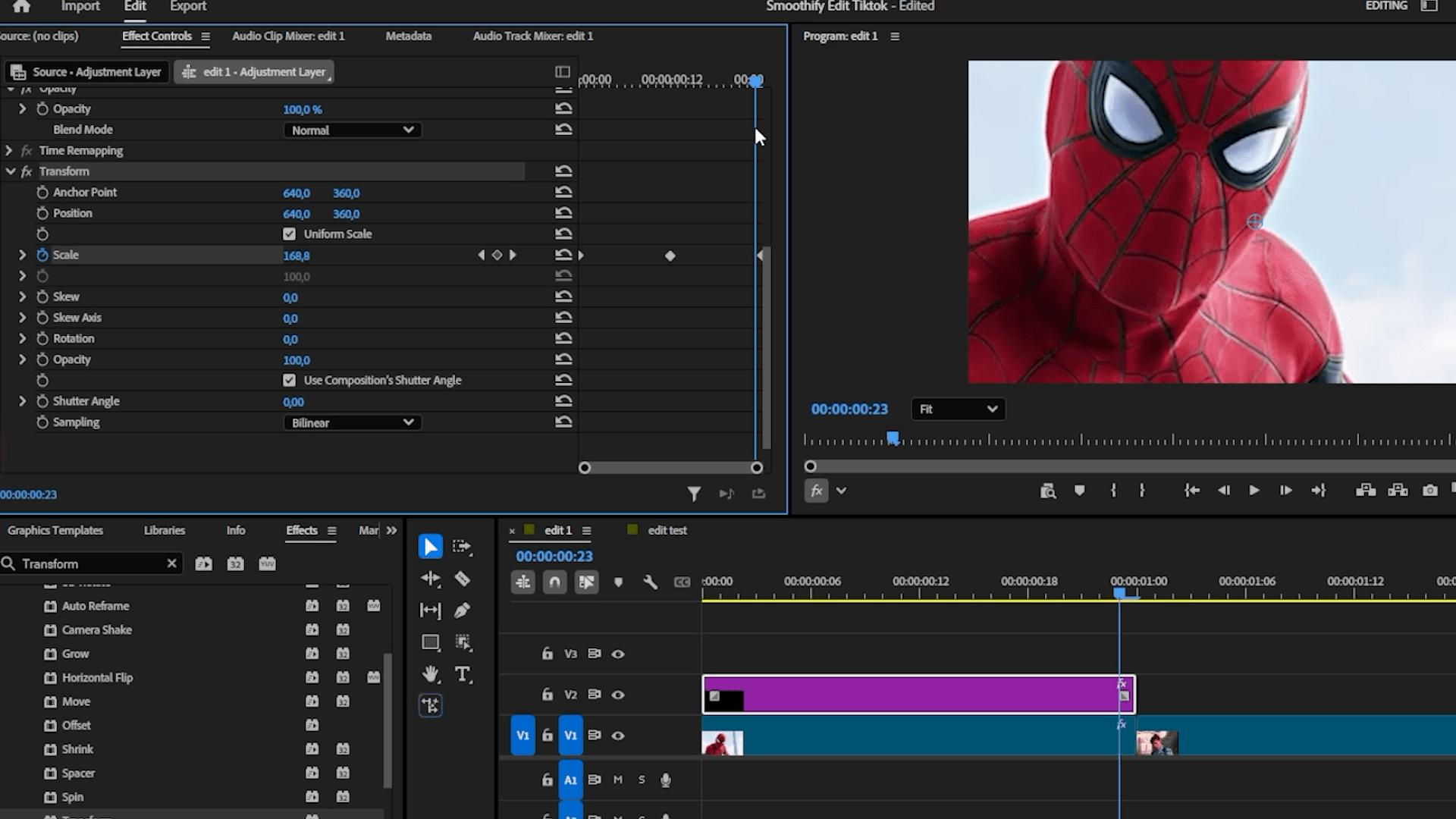
Set up your adjustment layer and keyframes
- Create an adjustment layer and place it above your first clip.
- Type transform in the Effects panel and drag it onto the layer.
- In Effect Controls, scroll down to the Transform section.
- Click the stopwatch on Scale to start keyframing, and set your first frame to 175 percent.
- Move to the middle of the layer and add a keyframe at 100 percent.
- Move to the end of the layer and add a keyframe at 175 percent, this is your smooth zoom out.
Apply the smooth curve with Smoothify
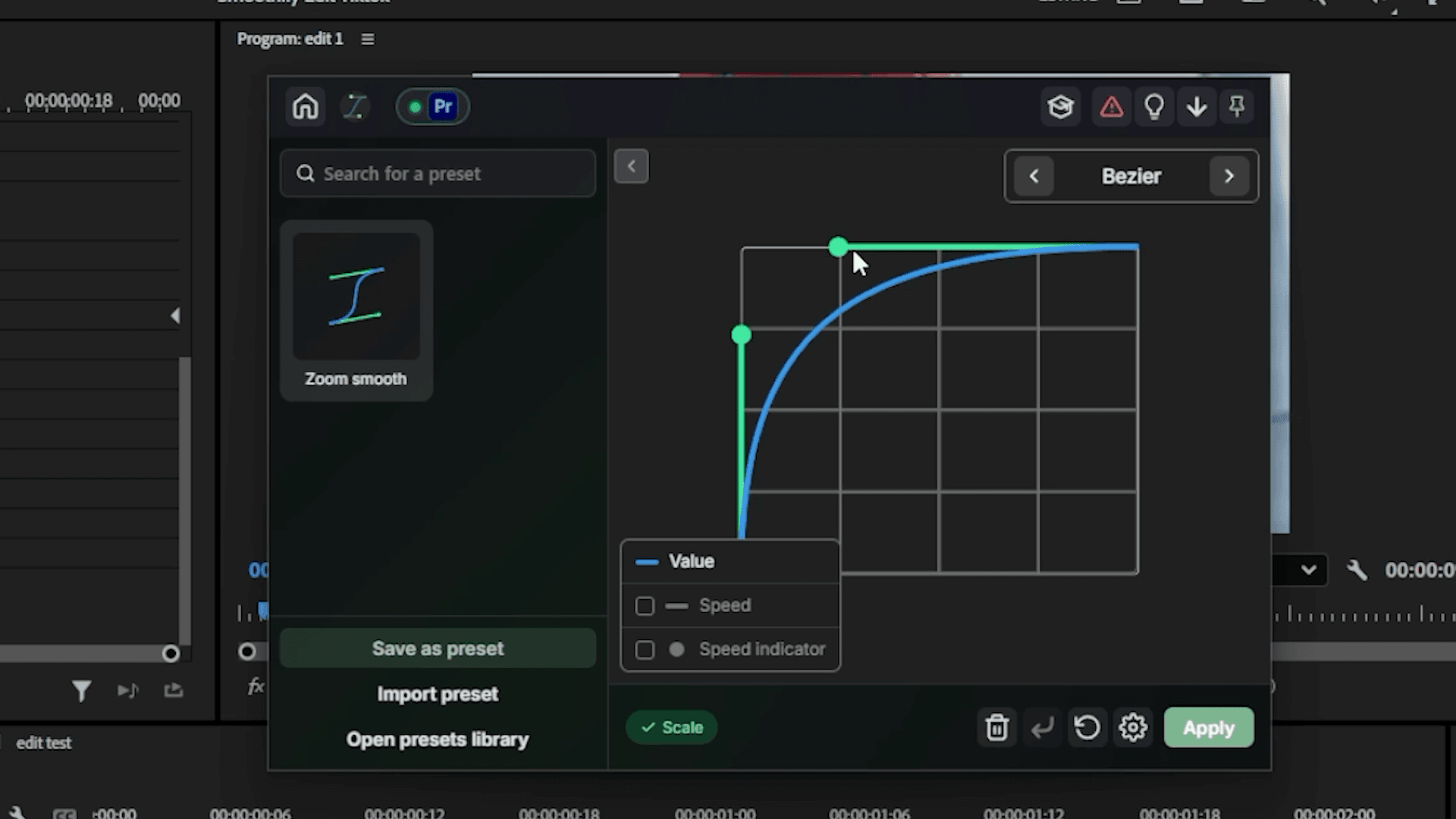
Instead of dragging Bezier handles one by one by hand, use Smoothify to apply the exact curve in a couple of clicks.
- Place your playhead between the first two keyframes.
- Open the Ring with Ctrl+Right-click or your custom hotkey, click the Blinkl icon in the middle, and go to Smoothify.
- In the graph editor, reproduce the curve for a smooth zoom out.
- Save it as a preset if you want to reuse it later, then click Save, the keyframes shape themselves automatically.
- Repeat the same thing between the last two keyframes, this time shaping a smooth zoom in curve.
Two details that sell the effect
- Shutter angle: scroll down to the shutter angle setting on your adjustment layer's clip and bump it up to 360, it adds motion blur that sells the speed of the zoom.
- A quick flash: add a short flash on the transition for a bit more punch, a common finishing touch on TikTok style edits.
Reuse it across your edit
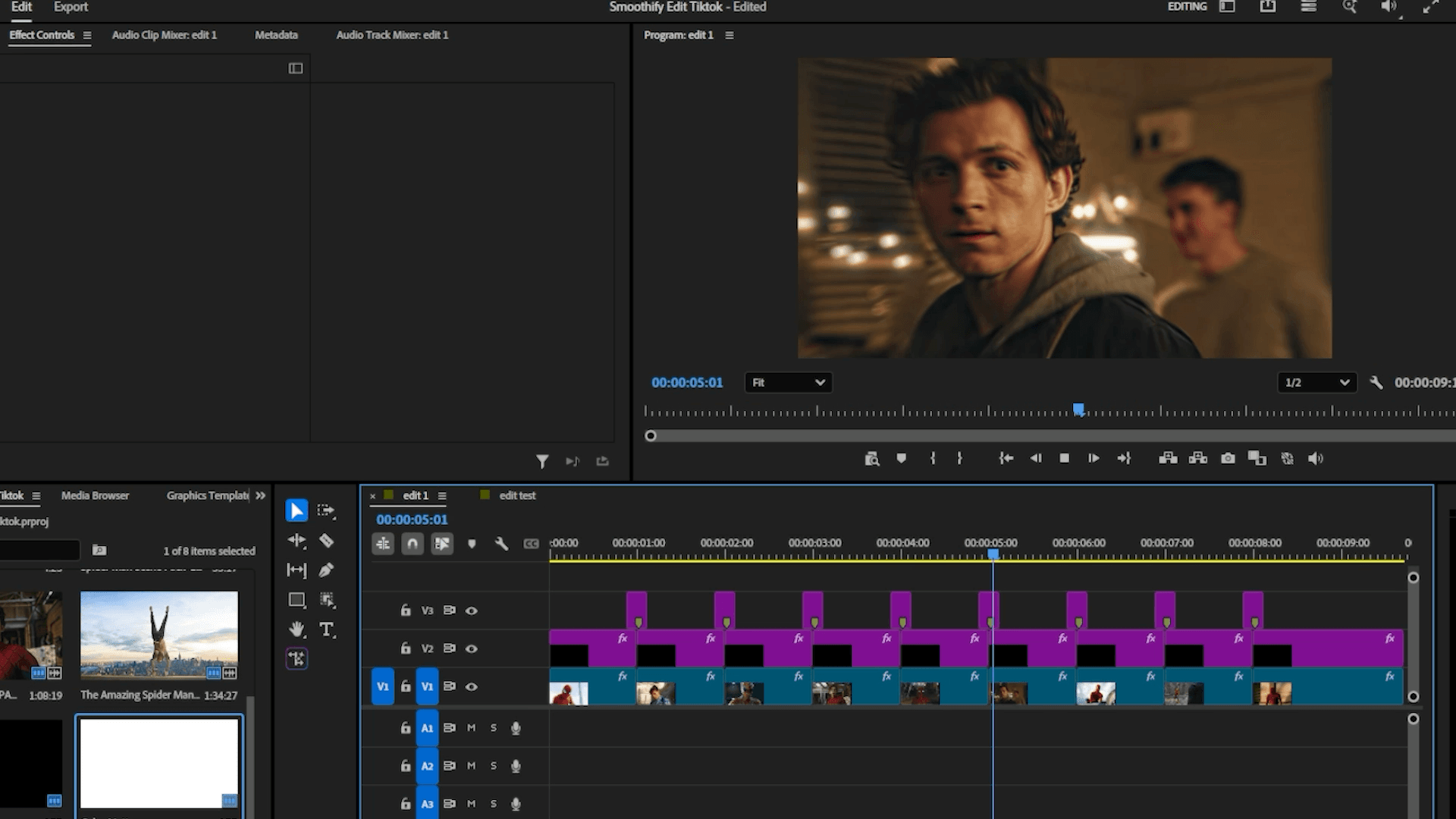
To apply the same zoom to your other clips, select your adjustment layer and copy paste it above each one, or reopen your saved Smoothify preset on a fresh pair of keyframes.
One click, buttery smooth
A smooth zoom transition comes down to the same recipe every time: two keyframes and the right curve between them. Shape that curve once in Smoothify, save it as a preset, and every zoom in your TikTok edits lands the same way, buttery smooth, with none of the Bezier wrangling.
· Buttery smooth zooms, one click
Frequently asked questions
The short answers to building a smooth zoom transition.
How do I make a smooth zoom transition in Premiere Pro?
What is the Smoothify extension?
How do I add motion blur to a zoom transition?
Can I reuse the same zoom on every clip?
Is Smoothify free?
Myriam HINDERER
Chief Marketing Officer